
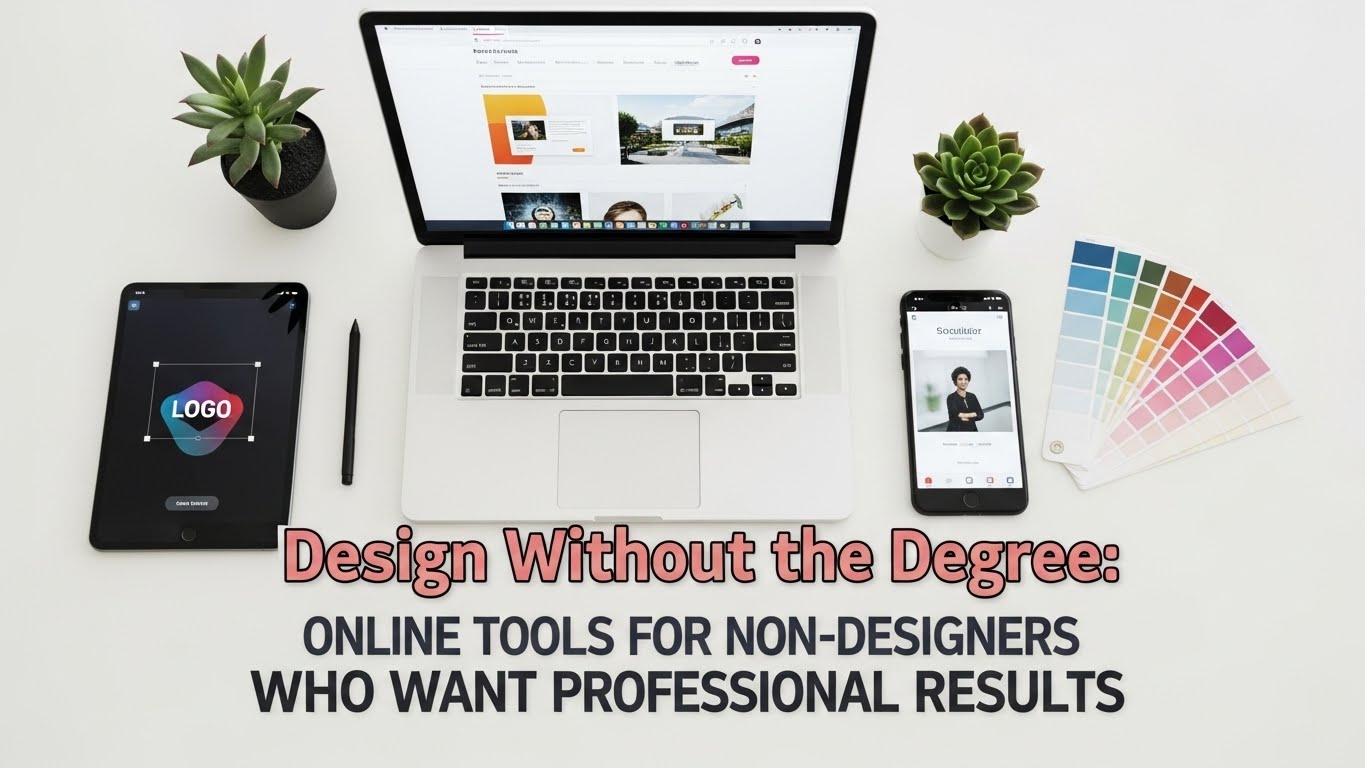
Not long ago, creating polished visuals required expensive software and years of training. But today, marketing teams, solopreneurs, and content creators can design professional assets without ever opening a traditional design suite. The rise of browser-based tools means that even non-designers can produce brand-ready graphics, social media posts, and presentations in minutes. This article explores the best online design tools that balance ease of use, creative freedom, and brand consistency—so you can look like a pro, even if design isn’t your day job.
Fotor — Quick Edits and AI-Powered Design Help
Fotor has evolved into a full creative studio built for users who need to move fast. It’s ideal for marketers and entrepreneurs who want to create content that looks custom but takes minutes, not hours.
Why it’s great for non-designers:
- Drag-and-drop templates for everything from social posts to YouTube thumbnails.
- AI tools for background removal, face retouching, and automatic resizing.
- Real-time collaboration for small teams.
- Built-in stock image and font libraries that reduce the need for external assets.
Pro Tip: Use Fotor’s Batch Processing to resize or watermark multiple images at once—a huge time-saver for ecommerce and social content teams.
Visme — Storytelling Meets Data Visualization
Visme helps users transform data and text into engaging visual narratives. It’s popular with educators, corporate teams, and agencies that need professional storytelling visuals without a steep learning curve.
Why it works:
- Dozens of infographic and chart templates that adjust automatically to your data.
- “Blocks” system lets you assemble slides or reports like Lego pieces.
- Animation and video integration options for added motion.
- Built-in analytics to track how people engage with your shared visuals.
Pro Tip: Combine Visme’s chart templates with brand colors and icons for report-ready visuals that match your identity.
Piktochart — From Presentations to Press Releases
If you can write a memo, you can design a press-ready visual in Piktochart. It specializes in turning plain information into professional infographics and slide decks.
Best uses:
- Transforming blog content or white papers into infographics.
- Simplifying data dashboards for clients or leadership presentations.
- Exporting slides to PowerPoint, PDF, or web-ready graphics.
Pro Tip: Start with an infographic template and use the “Visual Hierarchy” tool to highlight statistics automatically—no manual spacing or resizing needed.
Snappa — Social-First Design for Marketers
Snappa focuses on one thing: giving marketers fast, friction-free social graphics. It’s optimized for every platform size and features pre-cropped templates for YouTube, LinkedIn, Instagram, and more.
Why marketers love it:
- Automatic canvas resizing across platforms.
- 6,000+ templates for ads, headers, and thumbnails.
- Integrated social media scheduling.
- Direct publishing to Facebook or X (formerly Twitter).
Pro Tip: Use the “Instant Resize” feature to repurpose one design for multiple channels in under a minute.
Design Wizard — Brand Control Without the Overhead
Design Wizard offers agency-level brand consistency tools at a small-business price. It’s best for teams that need to enforce branding without hiring a full-time designer.
Key strengths:
- Upload and lock brand fonts, colors, and logos.
- Access to more than one million licensed images and templates.
- Custom size editor for unique ad specs or email headers.
- Integrations with HubSpot and Buffer for content workflows.
Pro Tip: Lock your brand palette to prevent accidental off-brand color use when multiple people edit assets.
🖌️ FAQ: Your Design-Tool Questions Answered
Even with great software, beginners often have recurring questions. Here are answers that make the difference between good and exceptional design outcomes:
Q1: How do I choose the right tool if I’ve never designed before?
Start with a platform that offers pre-built templates and contextual tutorials. Tools like Adobe Express and Fotor provide onboarding wizards that teach you as you go.
Q2: Can I create print-ready materials with free software?
Yes. Some platforms—including Adobe Express—offer high-resolution export options suitable for professional printing, including templates for free print out invitations and flyers.
Q3: What file formats should I use for social media vs. web uploads?
Use PNG for social media images (crisper visuals, transparency supported) and JPG for web galleries or high-volume uploads. Most tools let you export in both formats automatically.
Q4: How do I make sure my designs look “on-brand”?
Look for a Brand Kit or Style Guide feature (available in Adobe Express, Design Wizard, and Visme). It lets you save your logo, colors, and fonts for one-click use.
Q5: What if I need collaboration or approval workflows?
Visme and Fotor offer built-in commenting and version control for teams. For cross-department projects, export design drafts as links so reviewers can annotate directly in the browser.
Design as an Everyday Skill
Modern design isn’t about software mastery; it’s about visibility, consistency, and confidence. Choose one tool, learn its shortcuts, and let its templates do the heavy lifting—because great design now starts with clear intent, not a design degree.